The College Laptop We'd Actually Buy (and the Specs You Can Skip)
For most majors a last-generation MacBook Air or a $500-class Windows thin-and-light is the whole answer. The one spec worth paying for, the ones that aren't, and the four laptops we'd shortlist.

Buy a 13- or 14-inch laptop that weighs under three pounds, has 16 GB of memory if you can get it, and runs a full day on battery. Spend between $500 and $1,000. For most majors that is the whole decision, and the four laptops below cover it: a last-generation MacBook Air for people who can stretch to it, and three Windows machines for people who can’t or whose department says Windows.
What you do not need, for nursing, business, education, the humanities, or most of the social sciences, is anything sold with the word “gaming,” a discrete graphics card, a 4K screen, or a processor tier above the base one. The unhappy laptop owners in the student forums we read are almost never unhappy because the machine was too slow. They’re unhappy because it weighed five pounds and died before the afternoon lecture, so it stayed in the dorm.
A note on method: we didn’t run benchmarks. This guide is built from manufacturer specs, the published software lists of a dozen university departments, and long-term owner reviews, with a bias toward the complaints that show up in year two and three rather than the unboxing week. None of the laptops named here pay us anything; the affiliate programs we work with don’t cover them, so these are simply the ones we’d tell a relative to buy.
The shortlist
| Laptop | Typical price | Weight | Who it’s for | The catch |
|---|---|---|---|---|
| Apple MacBook Air M1, 13.3” (not an affiliate link) | About $600–$700 new where still stocked; less refurbished | About 2.8 lb | Most majors; the longest real-world battery here | 8 GB memory in the base model, two ports, no Windows-only software |
| Apple MacBook Air M2, 13.6” (not an affiliate link) | About $800–$1,000 | About 2.7 lb | The same buyer with more budget; brighter, larger screen, MagSafe charging | Price; 8 GB in the older base configurations |
| Acer Aspire 5, 15.6” (not an affiliate link) | About $450–$600 | About 3.9 lb | Tight budgets and Windows-only engineering software; memory is upgradeable | Heavy, middling battery, dim screen on the cheapest configurations |
| Lenovo IdeaPad Flex 5, 14” 2-in-1 (not an affiliate link) | About $500–$700 | About 3.3 lb | Note-takers who annotate slides with a pen | Plastic body; battery is a workday, not a weekend |
| HP Pavilion Aero 13 (not an affiliate link) | About $600–$800 | About 2.2 lb | The lightest Windows laptop at the price | 13.3” screen is small for spreadsheets; some owners report fan noise |
Prices are typical 2026 sale prices rather than list prices. All five go on sale constantly, and you should never pay full retail for any of them.
Step one: the department’s software list decides the operating system
Before comparing anything, find the required-software page for your program. Most departments publish one, and it settles the biggest question in five minutes.
If the list is Microsoft Office, a browser, Zoom, and the campus learning platform, any of the five laptops above works, and a MacBook Air becomes the default because its battery life and resale value are unmatched at the price. If the list includes SolidWorks, AutoCAD, Revit, MATLAB toolboxes with Windows-only add-ins, or a statistics package your department standardizes on for Windows, buy Windows and skip the Mac debate. Engineering, architecture, and some business-analytics programs fall here. Film and design programs are the reverse case: they often lean Mac, and the software that matters (Adobe, DaVinci Resolve, Final Cut) runs well on the M1 and M2.
Check one more thing on the same page: whether your school uses lockdown browser software for exams. Some versions don’t support Chromebooks, and a few have had rough patches with the newest macOS releases. Finding that out during your first proctored midterm is not the way to learn it.
The one spec that matters: memory
If you can afford exactly one upgrade, make it memory. Thirty browser tabs, a video call, a PDF reader, and a note-taking app open at once is a memory workload, not a processor workload, and memory is soldered to the board on every thin laptop here except the Acer. What you buy is what you have for four years.
Sixteen gigabytes is the comfortable number for a laptop you plan to graduate with. Eight is workable. The M1 Air handles 8 GB better than a Windows laptop does because of how macOS manages it, and a great many students have finished degrees on one, but it’s the spec owners most often say they’d change. The Acer Aspire 5 is the exception to the soldered-memory rule: most configurations have a spare memory slot, and adding 8 GB yourself costs about $25–$30 and ten minutes with a screwdriver. That’s the main reason it beats other $500 Windows laptops for a tight budget.
The specs that don’t
Processor tier is the biggest place money gets wasted. The step from a base chip to a mid-tier one in the same generation is a few hundred dollars and makes no perceptible difference to writing a paper or streaming a lecture. The M1, released in 2020, is still as fast in daily use as most Windows chips sold at the same price today.
Storage: 256 GB plus the cloud storage that comes with a student account is fine for almost everyone. Media students who edit video should size up to 512 GB or 1 TB; everyone else should buy an external SSD later if they run out, because a 1 TB internal upgrade from Apple costs several times what a 1 TB external drive does.
A 4K or OLED display costs battery and money at 13 inches with no legible benefit. A touchscreen on a laptop that doesn’t fold over is a gimmick you’ll stop using in a week; a touchscreen on a 2-in-1 like the Flex 5 is the entire point. Third-party extended warranties are a poor deal. Manufacturer accidental-damage coverage is the one exception worth pricing, because the failure mode for a student laptop is a fall, not a defect.
Weight and battery decide whether it comes to class
Under three pounds is the line. Both MacBook Airs and the Pavilion Aero are under it, the Flex 5 is just over, and the Aspire 5 is well over. Owners of the Aspire 5 love the value and complain about carrying it; that’s the trade, and it’s a fine trade if you live near campus or the laptop mostly lives on a desk.
For battery, ignore the manufacturer’s number and look at owner reports of mixed use: browser, video, notes, screen at a comfortable brightness. The M1 and M2 Airs are the only two laptops here that reliably go from a morning class to evening study without a charger, and that is the single biggest reason students who own them rarely regret the price. The Windows machines land around a working day of light use, which is fine if you carry the charger or have a desk to return to. The Pavilion Aero’s smaller battery is the cost of its 2.2-pound weight. (A 45 W USB-C power bank covers the gap for any of these; we cover which one in our power bank guide.)
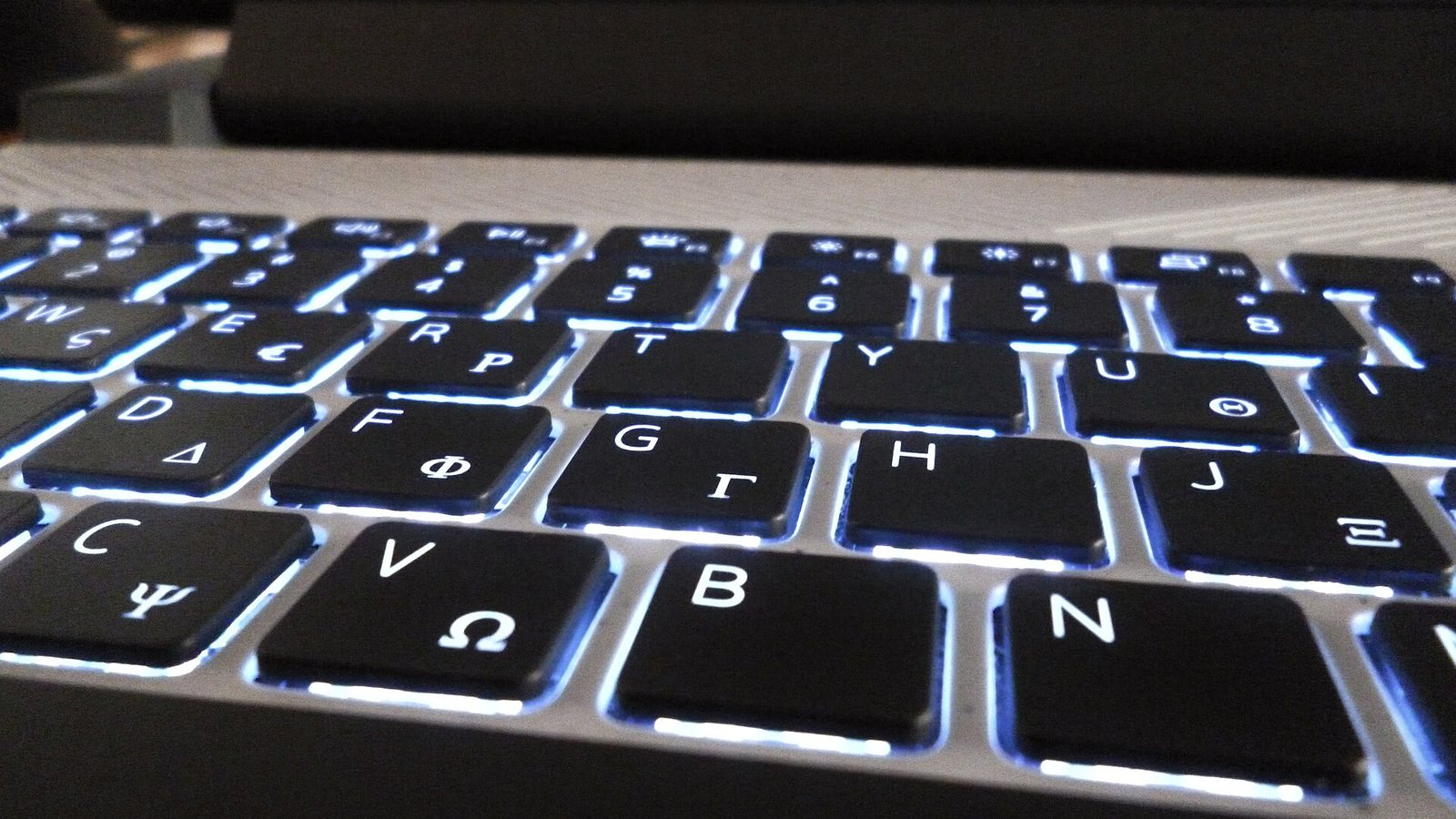
Keyboard and trackpad are the other daily-use specs, and they’re the reason to try a laptop in a store before ordering it online. Papers get written on this thing. Backlit keys matter more in dim dorm rooms than reviewers admit.
The four we’d shortlist, in order
MacBook Air M1 or M2. If the budget reaches $600–$1,000 and the department doesn’t require Windows, this is the answer. The M1 is the value pick even though Apple no longer sells it new; some big-box retailers have kept stocking it well under $700, and Apple’s own refurbished store often has M2 units with a full one-year warranty for less than a new one. Buy 16 GB if you can find it at a reasonable premium; take 8 GB over a heavier Windows laptop if you can’t.
HP Pavilion Aero 13. The Windows pick for people who prioritize weight. About 2.2 pounds in a magnesium-alloy shell, a Ryzen processor that is plenty for coursework, and usually 16 GB of memory at the $700 price point. The screen is small for side-by-side windows; pair it with a cheap monitor in the dorm.
Lenovo IdeaPad Flex 5, 14 inch. The 2-in-1 for note-takers. Fold it flat, annotate lecture slides with the pen, fold it back for the essay. Often configured with 16 GB, and the 14-inch screen is a good compromise between portability and workspace. The body is plastic and the battery is average, which is the trade for the hinge at this price.
Acer Aspire 5, 15.6 inch. The budget and engineering pick. It’s the only one here where you can add memory yourself, the 15.6-inch screen is roomy for CAD and spreadsheets, and it runs every piece of Windows-only department software. It weighs nearly four pounds and the base screen is dim; spend a little more for the 1080p IPS configuration if the listing offers one.
Where and when to buy
Three ways to pay less for the same machine. Buy the previous generation: the M1 over the M2, last year’s Aero over this year’s, with a real-world difference of nothing. Buy refurbished from the manufacturer rather than a marketplace seller; Apple’s refurbished units carry the same warranty as new, and Lenovo and HP both run outlet stores. And use the education discount, which needs a school email and usually stacks with a sale. Campus bookstores sometimes match those prices and sometimes don’t, so check both.
Timing: late June through August, and the two weeks around Black Friday, are when the sale prices in the table above actually appear. Order a couple of weeks before term so a defective unit can be exchanged without missing an assignment.
Three questions we get asked
Is a Chromebook enough?
For a program whose software lives entirely in the browser, yes, and a Chromebook Plus with 8 GB of memory at around $300–$400 is a legitimate choice. Confirm two things first: that your exam lockdown software supports ChromeOS, and that no course in your degree requires a desktop application. Many students find out in year three that one required class does.
What about an iPad with a keyboard?
As a companion for reading and annotating, excellent. As the only computer, most students find it frustrating for long papers, multi-window research, and any desktop software. If the budget covers one device, make it a laptop.
Should I wait for the next model?
No. The laptops in this guide are two to four generations old and remain more than fast enough; the next release will make them cheaper, not obsolete. The best time to buy is the sale before term, whatever the model year.
The bottom line
If the department doesn't require Windows and the budget reaches $600, buy a MacBook Air M1 or M2, with 16 GB if you can find it at a fair premium. Windows required or budget tighter: HP Pavilion Aero 13 if weight matters most, Lenovo IdeaPad Flex 5 if you annotate with a pen, Acer Aspire 5 if the budget is $500 or the software is CAD. None of these pay us anything.
What we like
- For most majors a 13- to 14-inch laptop under 3 lb with 16 GB of memory and all-day battery is the whole spec sheet, and $500–$1,000 covers it
- A last-generation MacBook Air (M1 or M2) has the longest real-world battery here and the best resale value four years out
- The Acer Aspire 5 is the one laptop here where you can add memory yourself, which is why it beats other $500 Windows machines
What to watch
- 8 GB of soldered memory is the spec owners most often wish they'd upgraded, and on thin laptops it can't be done later
- Anything much over 3.5 lb tends to stay in the dorm; the Aspire 5's low price comes with that trade
- Engineering, architecture and some analytics programs need Windows-only software, which rules out the Macs
Junjie Li
Junjie researches and writes every guide on this site. No lab and no sponsors: manufacturer specs, long-term owner reviews and professional test results, then a straight answer on what to buy for each situation.